Saved
Documents, training plans and trips the assistant writes for you, with versions, sharing, pages and pictures.
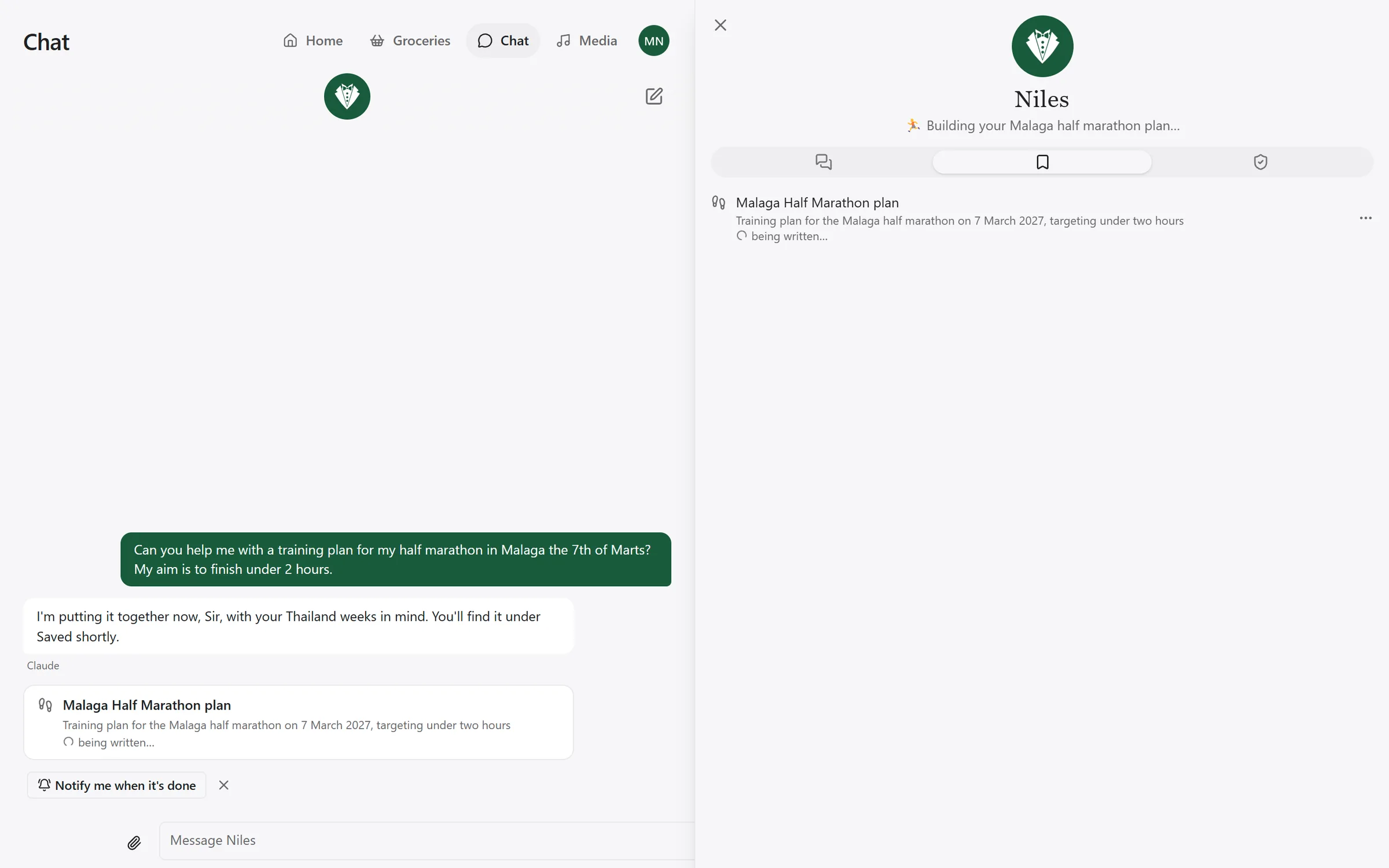
When you ask Niles for a packing list, a travel plan or a training plan, it keeps the result. Everything it has written for you is under Saved, the bookmark tab in Niles's panel (open it with the Niles avatar at the top of the chat).
Only Claude or ChatGPT writes these. Without either switched on, the tab says so and links to Settings → Voice & AI. Saved items also need Niles's database.
The three kinds
Documents are notes, lists, recipes and plans written as text. A checklist in one can be ticked in the app, and each tick is saved.
Training plans are built around a race. The view shows the race and how long until it, the newest note From your coach, and the plan week by week, with This week open and the others folded. Each week shows the distance done against the distance planned, and today's session has a Today badge. Tap a session to mark it Done (once its day has come) or Skipped, or Undo a mark. See Training and Strava for how runs mark themselves.
Trips have a destination, dates, travellers, a plan day by day, stays, a packing list, a budget, notes and pictures. The view counts down to the trip, shows Stays, the days (today's open while you are away), Packing · X of Y, Budget and Notes. A Booked badge marks what is booked, and a cost that is not booked yet is shown with ≈. Places link to Google Maps. Ticking the packing list is the one change you make in the view; ticks a moment apart are saved together.
Asking for one
Ask in the chat or by voice:
- "make a packing list for the cabin"
- "write me a travel plan for two weeks in Thailand in February"
- "make me a plan for the Copenhagen Half"
- "add the ferry to Koh Tao to the Thailand trip"
A short item is written straight away and appears as a card under the reply. A bigger one, anything that needs research or several sections, is written in the background. Training plans and trips are always written in the background. Before it starts, Niles asks for the race and its date, or the dates and roughly where, if it does not know them.
While a background item is being written, the panel shows a line such as "Writing your Thailand travel plan" and the card says it is being written. When it is done, the chat says so: "Thailand travel plan is ready."
You can have two items being written at a time, and each gets half an hour. If one fails, its card says it did not finish. Open it to see why, and press Try again. A restart of Niles stops anything being written, and it shows as failed.
Changing one
Ask for a change the same way: "move the ferry to Koh Tao to 9:30", "add sunscreen to the packing list", "make the headings on the Thailand page green". The assistant reads the item and saves only what changes, so a small change is made in the chat while you wait, as a new version.
A change that rewrites much of an item, such as a trip a week longer or a plan rebuilt around a new race date, is made in the background, and the chat says when it is done. So is a change that turns out to take longer than a chat answer has. Niles then says "This is taking longer than a chat answer. I'm still working on it and will let you know when it's done.", finishes it in the background, and tells you as it does for a new item.
Being told when it is ready
Under the newest card of an item still being written, Niles offers Notify me when it's done once. That turns on notifications for the device you are on. Each item also has a Tell me when it's ready switch, on by default, which only its owner sees. See Notifications.
Versions
Every change is a new version, and Niles keeps the last 50 of each item. Versions lists them with what changed, who changed it (You, Claude, ChatGPT or Niles) and when.
Open an old version to read it as it was, then Restore this version or go Back to the current one. Restoring saves a new version, so nothing is lost.
Share, copy and download
An open item has a share symbol, a box with an arrow, in its top right corner. Its menu shows what applies to the item:
- Share… opens the sharing dialog (see Sharing). Only the owner sees it.
- Copy puts the item on your clipboard: a document as markdown, a plan, a trip or an episode's script as plain text. The menu says Copied when it is done.
- Download as Word saves a document, a training plan or a trip as a
.docx. A document keeps its headings, lists, checklists (☐ and ☑), tables, quotes, code, links and pictures. A plan has the race, the coach's newest note and a table of sessions for each week. A trip has its dates, travellers, stays, each day's plan, the packing list with its ticks, the budget and the notes. - Download as Markdown saves a document's markdown as a
.mdfile. - Download the episode saves a ready podcast's MP3, named after it.
A file is named after the item. While you read an old version, Copy and the downloads use that version, and the file name says which: "Thailand trip (version 3).docx".
The Word file is made in the app from the item itself, never from its page. Pictures in it are Niles's own copies; one that fails to load is left out.
Pin, rename, archive, delete
Each row's More menu offers:
- Pin or Unpin. Pinned items come first. Your pins are your own.
- Rename.
- Archive or Unarchive. Archived items fold into Archived at the bottom of the list.
- Delete, which asks Delete this? and removes the item and every version of it.
The list shows pinned items first, then the rest by last change.
Sharing
You can share an item with anyone else in the household, meaning anyone listed under Settings → People. Open the item, press the share symbol in its top right corner and choose Share…. For each person choose None, View or Edit. A change is saved at once.
| Owner | Edit | View | |
|---|---|---|---|
| Read it and pin it | yes | yes | yes |
| See earlier versions | yes | yes | no |
| Change it, tick it, restore a version, try again | yes | yes | no |
| Ask their own assistant to change it | yes | yes | no |
| Rename it | yes | yes | no |
| Turn its notification on or off | yes | no | no |
| Archive, share or delete it | yes | no | no |
The other person finds it in their own Saved, marked Shared by Mark, or Shared by Mark · read only for view. You see Shared with N on yours. When someone else made the last change, the row says who.
The person you share with gets a notification the first time. Changing their access or stopping sharing sends nothing.
You can also ask: "share the Thailand trip with Majse so she can edit it" or "let Majse see my plan". Niles never shares anything you did not ask it to.
Deleting an item removes it for everyone it was shared with. Somebody removed from the household shows as Someone no longer in the household; you can stop sharing with them but not share with them again.
Somebody you have not shared an item with cannot open it, and the app gives them no way to tell that it exists.
A shared training plan still follows its owner's runs only.
Pages
Ask Niles to "make it look nicer" and the assistant writes a page for the item, with its own layout drawn from the same content. The content stays the real thing, and when it changes, the page shows the change. Small changes to the page itself, a colour or a heading, are made in the chat. A new layout, such as a timeline instead of a list, is made in the background like the first page.
A page runs walled off from the app:
- it cannot load anything from the internet, scripts and pictures included, and Niles refuses to save one that tries
- it cannot read cookies, the app's data or anything else on the device
- it gets no camera, microphone or location
- a link on it opens only after a dialog, Open a link from this page?, that names where it goes
A page can save changes to its item, as a new version marked "On its page". If a page fails to show, Niles shows its own view with a note saying why. Page and Built-in switch between the two, and Remove page drops the page.
Pictures
Documents and trips can carry pictures. The assistant finds them through web search, or uses a web address you give it. This needs SearXNG; see Add-ons and accounts. Training plans have no pictures, and photos you attach in the chat are not used.
Niles keeps its own copy of each picture: turned upright, scaled down, and with location and camera data removed. The view shows each one with its credit and a link to where it came from. An item holds at most 40 pictures.